1. Creating a Facebook Application
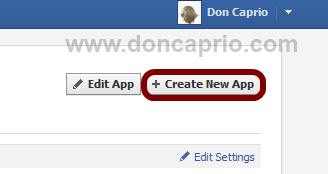
i. Head on to facebook developer page, you should create a new app by clicking the button at the top right.
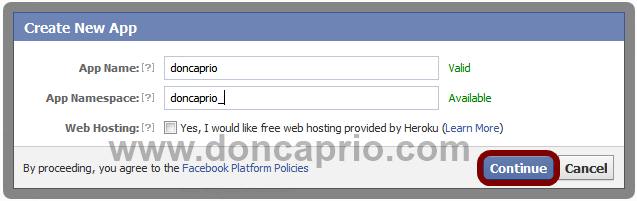
ii. Enter your application name and namespace,input the captcha code and proceed.
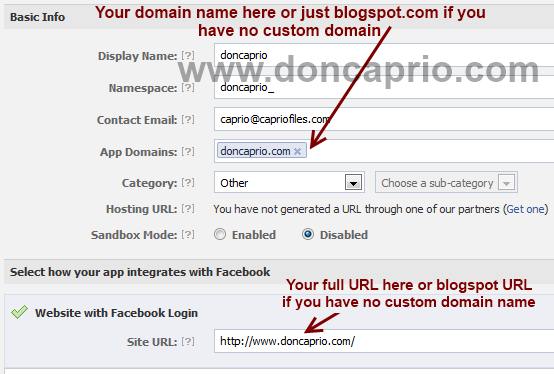
iii. On the next page, enter your custom domain name (if you’re using a custom domain) or just blogspot.com (if you’re using blogspot sub domain) in the space provided for App domain.
For App website, enter you blog URL. ( http://www.xyz.com/ or http://xyz.blogspot.com/ ). Be sure it starts with http:// and ends with / as shown in the screenshot below:
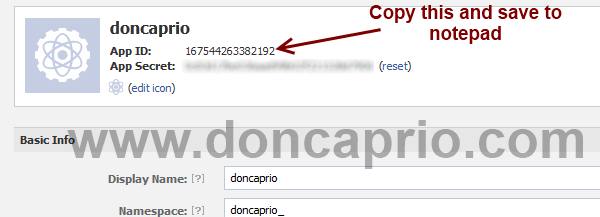
iv. Scroll down a bit and hit the Save Changes button. Now you’re done with creating your facebook application but there’s one more thing to do. On that same page, you should see your application ID. Copy it and save somewhere, you’re gonna be needing it.
Now let’s head to your blog and finish this up 
2. Adding the codes to your template
We’re adding four sets of codes into your template to make this work the way we want, aight?
i. xmnls attribute
ii. SDK script
iiI. Open graph meta tag
iv. Comment form iframe code
ii. SDK script
iiI. Open graph meta tag
iv. Comment form iframe code
Log in to your blogger account and click on Template > Edit HTML > Check Expand Widget Template
i. Press Ctrl + F and search for this code:
This should be found on the second or third line of your template.
- Right in front of this, add the following code:
xmlns:fb='http://www.facebook.com/2008/fbml'
-Be sure to have a space before and after this code. Take a look at the example below:
ii. Press CTRL + F on your keyboard and search for this:
If you can’t find this, search for something similar. You should search for this instead:
In the next line, paste this code:
Be sure to replace YOUR APPLICATION ID HERE with the application ID I asked you to copy earlier, remember?
iii. Now, let’s add the open graph meta tag. Search for this code in your template:
In the line above it, paste this piece of code:
YOUR_APP_ID
" />
Replace YOUR_APP_ID with that same application ID you previously copied.
iv. Now here’s the last part of tweaking your template your template to make it display Facebook comment box. The last thing is the iframe to display the comment box where you want. Search for this in your template:
If you’re using a magazine style template, you’re likely to have more than one occurrence of this. Using the wrong one won’t make the comment show up. If you’re not sure about which one to use, search for this instead:
In the line just below it, paste this code:
3. Enabling notification for comments on every post
This is the last part and it’s optional but I recommend it. Enabling this lets you know whenever someone comments on your blog. You get a regular notification on Facebook and you can visit your blog to reply the comment.
- Visit this URL: https://developers.facebook.com/tools/comments/?id=YOUR_APP_ID
- Be sure to replace YOUR_APP_ID with your real application ID
- On the page that opens, click on settings and add yourself as moderator
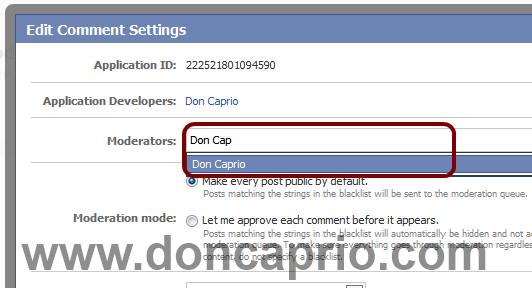
- Click on your name when it shows up and save the changes you made. When someone drops a comment on your blog, you should be notified that instant on Facebook.
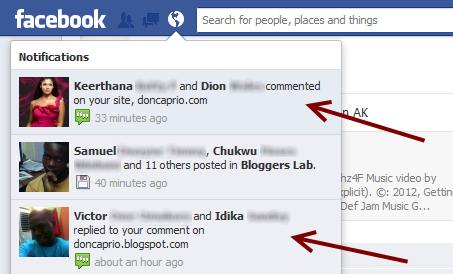
If this works for you, you can say thank you by sharing on Facebook, hitting the Google +1 button or simply using the comment box. Also, it would be nice of you not to remove the credit link to allow others find this useful widget. If you’re having problems implementing this as well, don’t hesitate to let me know maybe I can be of help.
- See more at: http://www.doncaprio.com/2012/08/new-facebook-comment-box-for-blogger-with-notifications-enabled-2.html#sthash.eL3upOeK.dpuf
Add Facebook comment box for Blogger with Notifications Enabled
ReplyDeleteand
Tricks,Online Earning,Blogger widgets,blogger tips and tricks,SEO,Training Courses
visit
http://brother572.blogspot.com/2013/11/how-to-add-facebook-comment-box-for.html
http://brother572.blogspot.com/