Thursday, 28 February 2013

Install ZemAnat On you blog post


What makes a great blog post?


When people ask me how they can create 'quality blog posts', I usually tell them to first overview their own posts from an outsider's perspective. Forget the person who wrote the post, and become the person who'd love to find anything wrong with the post so that he could fire the guy who wrote it. This kind of self-criticism often proves to be constructive, and makes you see your posts in a better light.

Now the writing part of the blog post itself cannot be imposed on anyone, because not everybody has the knack for writing proficiently, not at the start anyway. So instead, we advise people to focus on the visuals. When you take a glance at a blog post, you generally analyze the structure of the content. One of the most important thing to consider here is visual aids. Adding images can be the key to any post's success, since they add colors and graphics which attract readers.

Besides images, there are a few more things that matter within a blog post, such as authority links, further resources, and so on. In other words, working on building trust. Well, as it turns out, this sort of work is right up Zemanta's alley.

Zemanta?

Zemanta is a free editorial service that will help you build upon your blog post, and add more value to it by helping with images, tags, links, and more. It has just been integrated with Blogger, so Blogger users can easily use this to improve the quality of their blog posts!

Zemanta can help you with;
  • Images - This is a real time-saver! While you are writing your post, you can see image suggestions appear right on your sidebar. You can choose them at any post, and insert them into your post with a single click! Additionally, you can quickly insert your Instagram and Flickr photos too.
Images
  • Tags - With Zemanta, you can easily tag your posts with Labels. Zemanta will make the process much easier, and bring your site closer to search engines as well.
  • In-text links - This is another perk I was really looking forward to. Zemanta will automatically (or to quote Zemanta, "automagically") link keywords to relevant sources. This will hopefully help readers who aren't clear about a term, and want to find out more about it.
  • Related Articles - Here's another potential gold mine. You can use this tool to link to your old articles, as well as to link to articles from the blogosphere. This way, you will relate to posts from other bloggers, and other bloggers will relate to posts from you. Hence, an effective linking scheme that could benefit both parties.

How to get Zemanta?

Zemanta is pretty easy to install. And since it's free, there's no hassle about it. Best of all, it is available for most popular browsers, since it is a browser extension. You can get this plugin from its host website. Simply click on the browser icon that you use, and follow the on-screen instructions.

For example, to install to Chrome, simply follow this download link. Click on the Add to Chrome button at the top, and this extension will be installed in seconds! Similarly, for FireFox, all you need to do is go to the download site, and click on Continue to download. The extension will then take no time to download and install!

Pretty cool, huh? This plugin could really save time, and help with productivity. What do you guys think? Leave your interesting responses below. Peace :)
 - See more at: http://www.mybloggertricks.com/2013/02/creating-high-quality-content.html#sthash.TwCYXQFj.dpuf
how to add facebook comment box with notification


1. Creating a Facebook Application

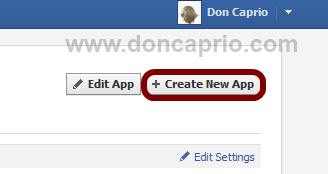
i. Head on to facebook developer page, you should create a new app by clicking the button at the top right.
how to add facebook comment box for blogger
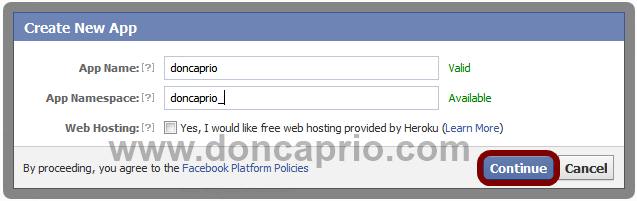
ii. Enter your application name and namespace,input the captcha code and proceed.
how to add facebook comment to blogger
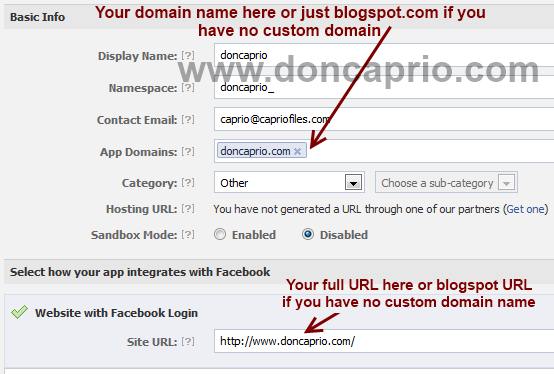
iii. On the next page, enter your custom domain name (if you’re using a custom domain) or just blogspot.com (if you’re using blogspot sub domain) in the space provided for App domain.
For App website, enter you blog URL. ( http://www.xyz.com/ or http://xyz.blogspot.com/ ). Be sure it starts with http:// and ends with / as shown in the screenshot below:
how to add facebook comment to blogspot
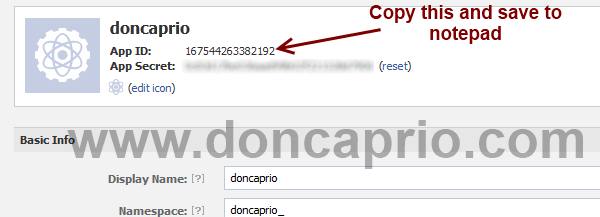
iv. Scroll down a bit and hit the Save Changes button. Now you’re done with creating your facebook application but there’s one more thing to do. On that same page, you should see your application ID. Copy it and save somewhere, you’re gonna be needing it.
facebook comment box for blogspot
Now let’s head to your blog and finish this up ;)

2. Adding the codes to your template

We’re adding four sets of codes into your template to make this work the way we want, aight?
i. xmnls attribute
ii. SDK script
iiI. Open graph meta tag
iv. Comment form iframe code
Log in to your blogger account and click on Template > Edit HTML > Check Expand Widget Template
i. Press Ctrl + F and search for this code:
This should be found on the second or third line of your template.
- Right in front of this, add the following code:
xmlns:fb='http://www.facebook.com/2008/fbml'
-Be sure to have a space before and after this code. Take a look at the example below:
ii. Press CTRL + F on your keyboard and search for this:
If you can’t find this, search for something similar. You should search for this instead:
In the next line, paste this code:

Be sure to replace YOUR APPLICATION ID HERE with the application ID I asked you to copy earlier, remember?
iii. Now, let’s add the open graph meta tag. Search for this code in your template:
In the line above it, paste this piece of code:
YOUR_APP_ID
" />
Replace YOUR_APP_ID with that same application ID you previously copied.
iv. Now here’s the last part of tweaking your template your template to make it display Facebook comment box. The last thing is the iframe to display the comment box where you want. Search for this in your template:
If you’re using a magazine style template, you’re likely to have more than one occurrence of this. Using the wrong one won’t make the comment show up. If you’re not sure about which one to use, search for this instead:
In the line just below it, paste this code:

3. Enabling notification for comments on every post

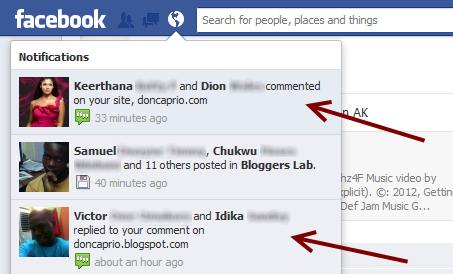
This is the last part and it’s optional but I recommend it. Enabling this lets you know whenever someone comments on your blog. You get a regular notification on Facebook and you can visit your blog to reply the comment.
- Visit this URL: https://developers.facebook.com/tools/comments/?id=YOUR_APP_ID
- Be sure to replace YOUR_APP_ID with your real application ID
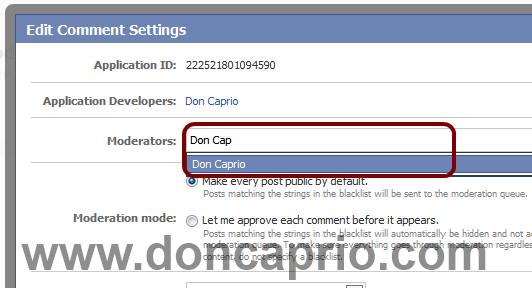
- On the page that opens, click on settings and add yourself as moderator
facebook comment box for blogger with notification
- Click on your name when it shows up and save the changes you made. When someone drops a comment on your blog, you should be notified that instant on Facebook.
facebook comment box for blogger with notification enabled
If this works for you, you can say thank you by sharing on Facebook, hitting the Google +1 button or simply using the comment box. Also, it would be nice of you not to remove the credit link to allow others find this useful widget. If you’re having problems implementing this as well, don’t hesitate to let me know maybe I can be of help.
- See more at: http://www.doncaprio.com/2012/08/new-facebook-comment-box-for-blogger-with-notifications-enabled-2.html#sthash.eL3upOeK.dpuf